May 26, 2026 · Matteo
Shopify Store Audit Image SEO (2026 Guide)
You fixed alt text on your last ten products, but three hundred older SKUs still ship with IMG_4832.jpg and blank alt fields. A Shopify store audit for image SEO answers one question: which products still hurt Google Image Search, accessibility, and page speed?
Manual spot checks do not scale. This guide covers what to audit, how to score a catalog without spreadsheets, and how Pixly Store Audit turns gaps into a fix queue on Growth and Scale plans.
What a Shopify image SEO audit checks
| Check | Why it matters | Common failure |
|---|---|---|
| Alt text quality | Google Image Search, screen readers, AI shopping answers | Empty, one word, or template text |
| SEO filenames | URL signals and crawl clarity | UUID or camera defaults (DSC_0042.jpg) |
| File weight | LCP and mobile data usage | JPEGs above 300 KB on product grids |
| Format | Payload on collection pages | Legacy PNG/JPEG where WebP would load faster |
| Consistency | Variant galleries look professional | Mixed sizes and crops across SKUs |
Product media is the highest-leverage layer because the same image repeats on collection pages, search results, and recommendation widgets.
For size and crop rules, see Shopify image size guidelines. For alt text depth, see the Shopify alt text SEO hub.
Manual audit (small catalogs)
Works when you have under ~30 products and time for admin clicks.
- Open Products in Shopify admin.
- For each best seller, open Media and check Alt text on every image.
- Note filenames in the image URL or download link. Generic names fail the audit.
- Run PageSpeed Insights on a product URL. Heavy product images often show up in LCP warnings.
- Log gaps in a spreadsheet: product handle, image count, missing alt, bad filename, file size if known.
Done when: every row in your spreadsheet is green for alt text and filenames on hero SKUs.
This breaks down past a few dozen products. That is where a catalog scan saves weeks.
How Pixly Store Audit scores your catalog
Store Audit lives on the Auto-Pilot page in Pixly. It is available on Growth and Scale (not Free or Starter).
When you run a scan, Pixly pulls product media from your connected store and scores each product:
| Score | Meaning |
|---|---|
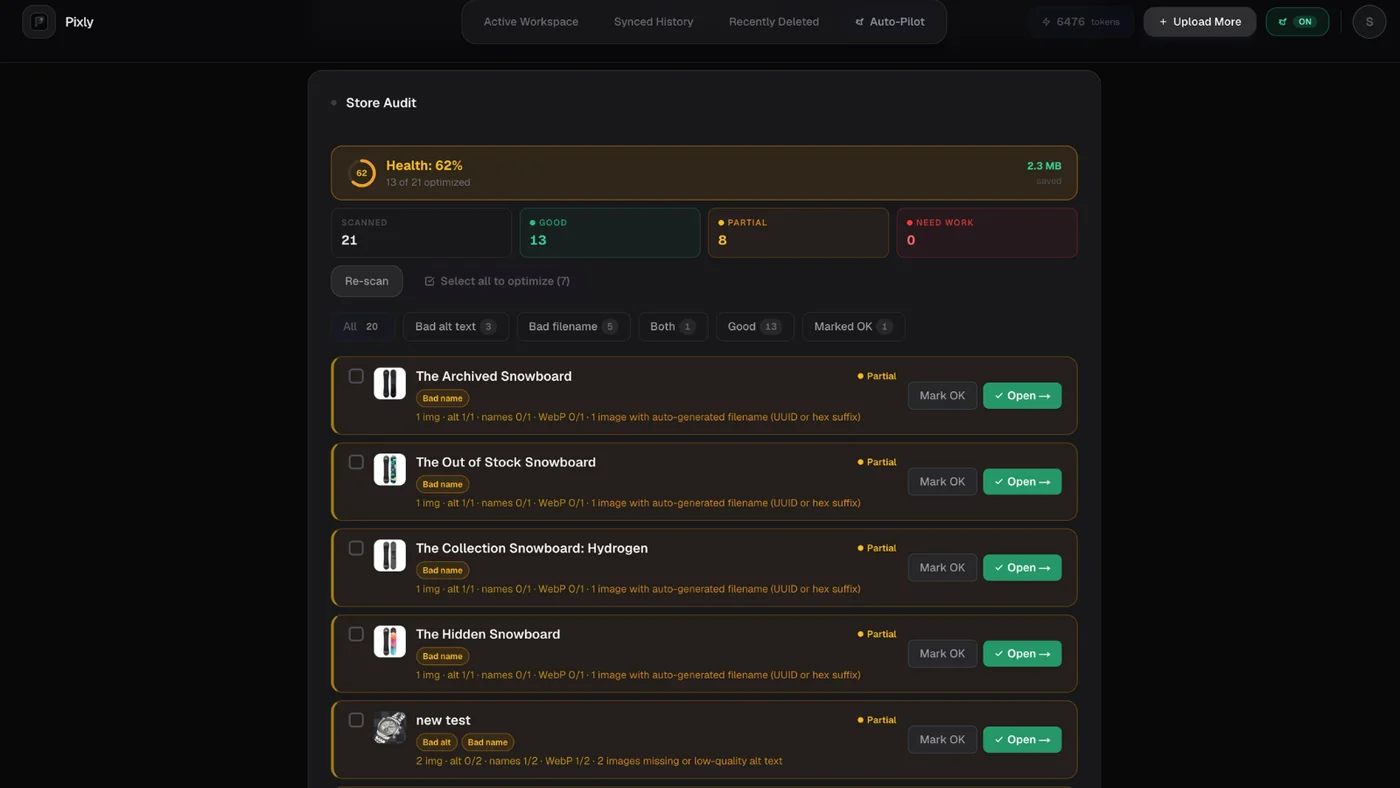
| Good (green) | Alt text, filenames, and file weight pass quality checks |
| Partial (yellow) | Some images pass, others need work |
| Needs work (red) | Missing alt, auto-generated filenames, or files at/above 300 KB |
Pixly also shows a catalog health percentage: share of products in the green bucket. Rescan after bulk syncs so the score reflects what is live in Shopify.
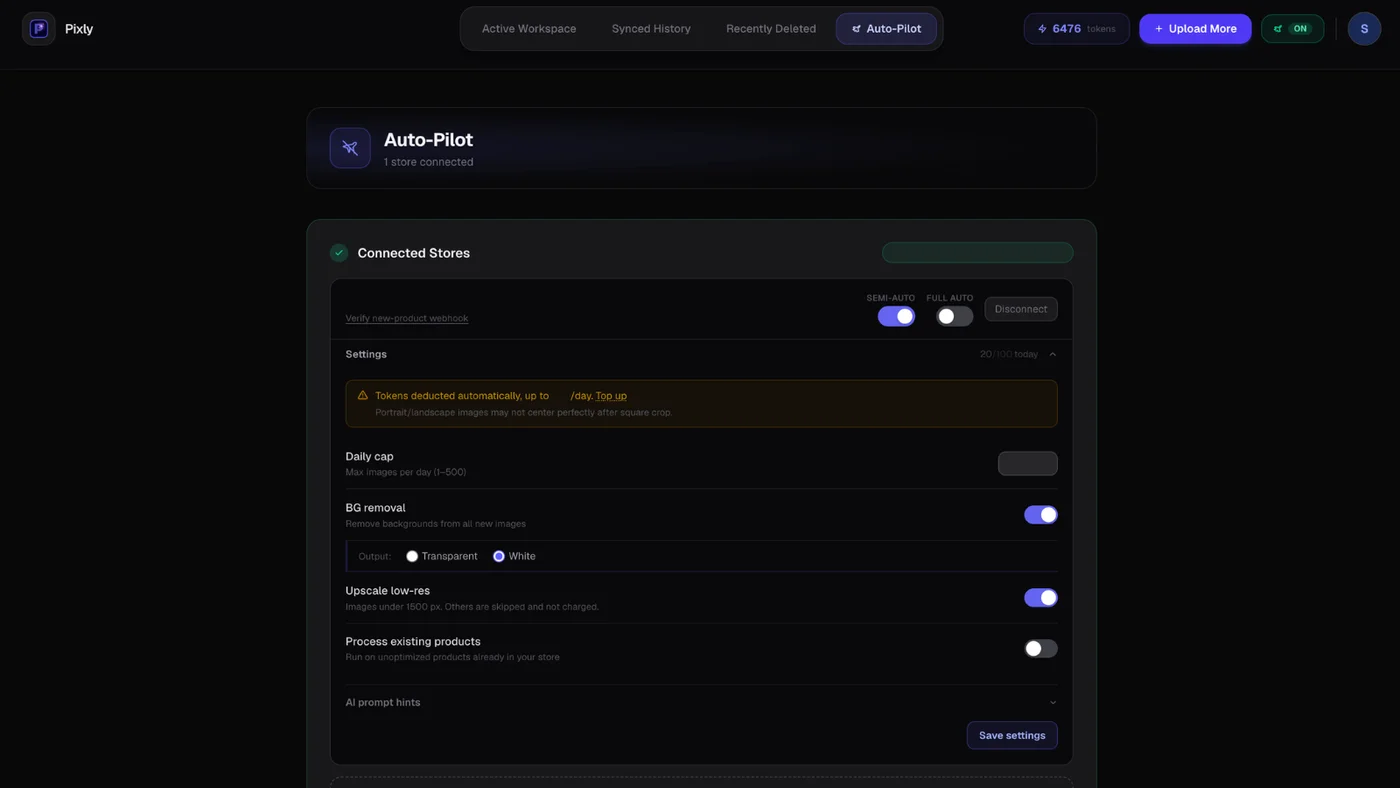
Store Audit and Auto-Pilot share the same page in Pixly. Connect your store first, then open the Store Audit step:
After the scan finishes, flagged products appear in a sortable list with issue summaries:
What counts as "quality" alt text
Pixly flags alt text that is too short, generic (image, product), or mostly stopwords. Strong alt text describes color, material, angle, and product context in a natural sentence (typically five or more words).
What counts as a descriptive filename
Filenames like blue-ceramic-mug-front-view.webp pass. Auto-generated names with UUID or hex suffixes fail. Shopify CDN suffixes (_800x800) are stripped before scoring.
File size threshold
Images at or above 300 KB are flagged. That aligns with Pixly's Smart Skip notice in Review. You can still approve heavy files, but the audit surfaces them for speed work.
Store Audit workflow (fix the backlog)
- Connect Shopify and upgrade to Growth or Scale if needed (pricing).
- Run Store Audit on your primary store. Large catalogs may take a minute while images download.
- Filter by red/yellow products. Start with best sellers and high-traffic collections.
- Queue for analysis from the audit list. Pixly prepares jobs so you can analyze with one click.
- Review alt text, WebP toggle, 1:1 crop, and optional upscale in the Decision Hub.
- Sync approved images back to Shopify.
- Rescan when the health banner says your score is stale after a sync.
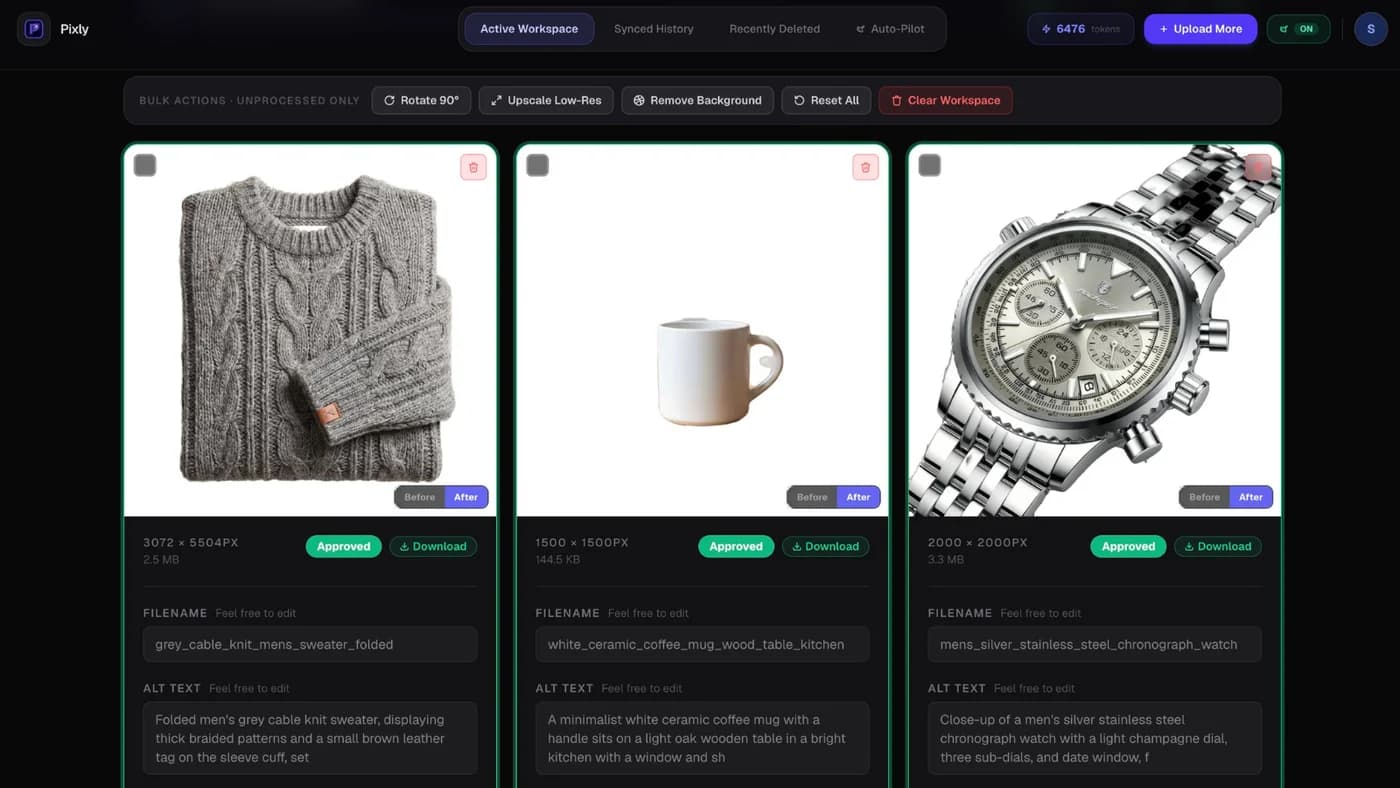
Review before sync is the default. You approve every card:
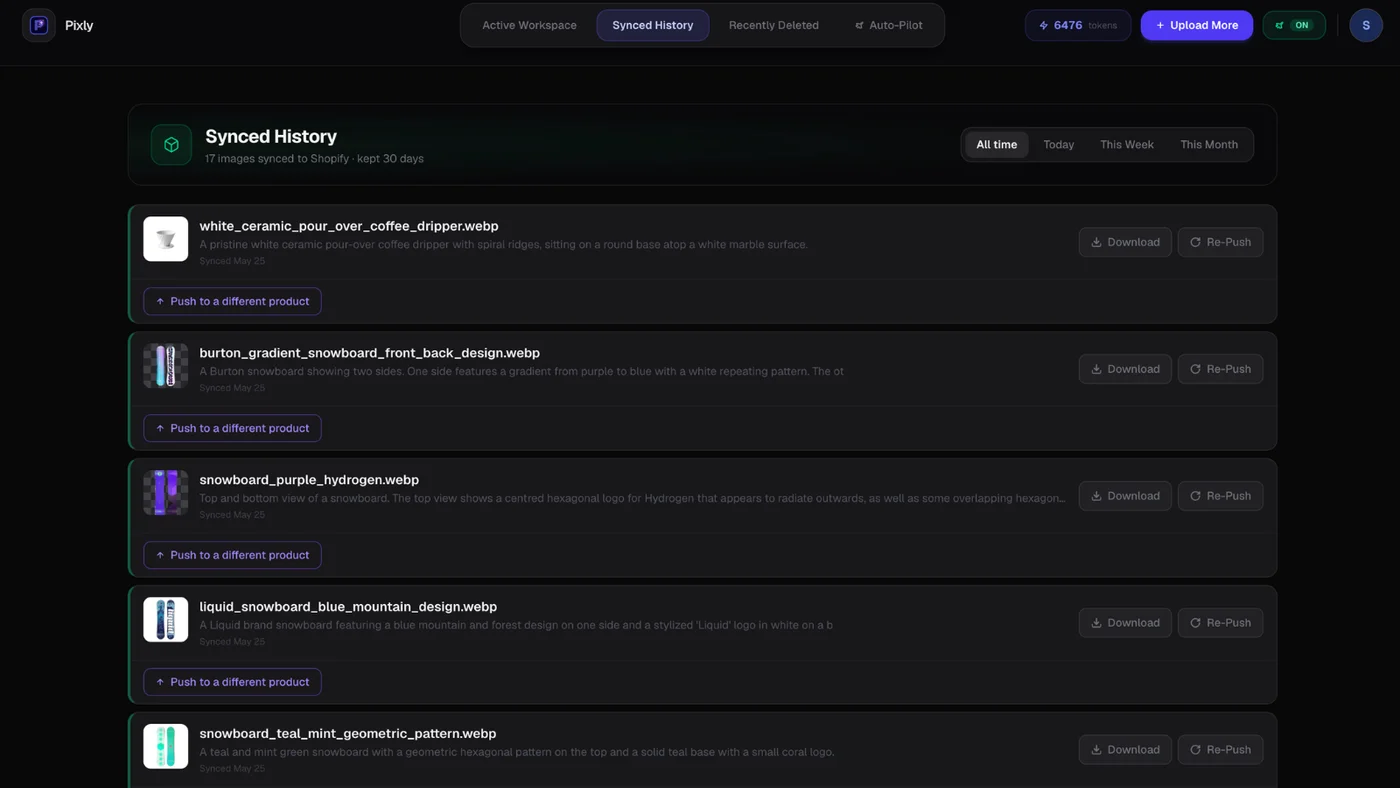
Sync history confirms what reached your store:
Store Audit vs Auto-Pilot
| Tool | Best for | Plan |
|---|---|---|
| Store Audit | Existing catalog gaps, health score, prioritized backlog | Growth, Scale |
| Auto-Pilot | New or updated products via webhooks | Growth (Semi-Auto), Scale (Full Auto option) |
Run Store Audit once (or quarterly) to clean history. Turn on Auto-Pilot so new SKUs never ship unoptimized. Full Auto-Pilot guide: auto optimize new product images.
Tie audit results to store SEO
Image SEO supports the wider checklist in how to optimize a Shopify store for SEO:
- Alt text and filenames help Google Image Search and AI answer engines.
- Lighter WebP files help Core Web Vitals on product and collection templates.
- Consistent square crops keep collection grids uniform.
Speed-specific fixes: optimize Shopify store speed.
Got questions?
Frequently asked
Bottom line
A Shopify store audit for image SEO turns an invisible backlog into a prioritized fix list. Manual checks work for tiny catalogs. Pixly Store Audit scales the same rules across every product with green, yellow, and red scores plus a health percentage you can track over time.
Install Pixly on Shopify and run your first catalog scan on Growth.
Written by Matteo, founder of Pixly. Questions? hello@getpixly.app
Pixly for Shopify
Bulk alt text, WebP, and 1:1 crops synced to Shopify
Review every image before sync. Start free with 69 tokens per month. No credit card needed.
More from Pixly
- How Pixly works — upload, AI analysis, review, Shopify sync
- Features — Store Audit, Auto-Pilot, WebP, alt text
- Pricing — start free with 69 tokens per month
- Shopify Alt Text SEO (2026 Guide)
- How to Optimize Shopify Store for SEO (2026 Guide)
- How to Use Pixly on Shopify (2026 Guide)
- Shopify Auto Optimize Product Images (2026 Guide)