May 28, 2026 · Matteo
Shopify image size guidelines (2026 Guide)
If you sell on Shopify, your product photos do more work than almost anything else on the page. They drive clicks from Google Image Search, shape first impressions on collection grids, and either help or hurt page speed.
This guide covers Shopify image size guidelines for product images in 2026: dimensions, resolution, file format, and what to do when your catalog is too big to fix one photo at a time.
I built Pixly after running Shopify stores myself. Image specs were easy to find. Fixing hundreds of products consistently was not. This is the reference I wish I had. If you want the full workflow (AI alt text, WebP, review, sync), see how Pixly works.
Quick reads on related searches
This is the hub guide (full specs and workflow). Shorter pages for specific searches:
- Shopify image size and resolution (pixels vs DPI)
- Shopify image recommended size (cheat sheet table)
- Best image size for Shopify mobile (CDN and one master file)
- Shopify product image pixels (pixel counts only)
- Shopify product image full width (theme display vs upload)
- Shopify reduce product image size (smaller dimensions and weight)
- Shopify collection image size (collection hero dimensions)
Quick reference: Shopify product image sizes
| Image type | Recommended size | Aspect ratio | Format notes |
|---|---|---|---|
| Product (main) | 2048 × 2048 px max upload; 2000 × 2000 px is a solid target | 1:1 square displays best in most themes | WebP or JPEG; WebP is smaller at equal quality |
| Product (gallery) | Same as main | 1:1 keeps grids consistent | One consistent size across variants |
| Collection hero | Theme-dependent (often 1920 × 600 to 1920 × 1080) | Wide banner | Separate from product catalog rules |
| Blog / content | 1200–1600 px wide | Landscape | Not synced as product media |
File size: Shopify accepts uploads up to 20 MB per image and 4472 × 4472 px max dimensions, per Shopify's media documentation. Smaller files load faster. Aim for product images under 500 KB after compression when you can.
Takeaway for merchants: Product photos should be sharp, square, and light. Theme banners and homepage heroes follow different rules. This guide focuses on catalog images, because that is where most stores bleed speed and SEO.
Why Shopify product image size matters
Three things break when product images are wrong:
- Page speed. Heavy JPEGs on every variant add up. Mobile shoppers feel it first.
- Google Image Search. Blank alt text and generic filenames (
IMG_4832.jpg) waste ranking potential. - Visual consistency. Mixed aspect ratios make collection pages look messy even when the photography is good.
Shopify does compress images on delivery, but it does not rewrite alt text, rename files for SEO, or bulk-fix a catalog that was uploaded over three years of growth.
Shopify image size and resolution explained
Size = pixel dimensions (width × height).
Resolution = how much detail those pixels hold (often discussed as DPI for print; for web, pixels matter more than DPI).
For Shopify product photos:
- Minimum practical quality: Longest side at least 1000 px for zoom on desktop.
- Sweet spot: 2000 × 2000 px square. Sharp on retina, not wastefully huge.
- Maximum useful upload: 2048 × 2048 px (Shopify's common recommendation for product media). Going far beyond that rarely helps shoppers and costs load time.
If suppliers send 4000 px files, downscale before upload. You keep quality and lose weight.
Recommended format: JPEG, PNG, or WebP?
| Format | Best for | Tradeoff |
|---|---|---|
| WebP | Product photos on the web | Smallest files; not all old tools export it by default |
| JPEG | Photos with many colors | Universal; larger than WebP at same visual quality |
| PNG | Logos, flat graphics, transparency | Heavy for full product shots |
2026 default: Export product photos as WebP when your workflow allows it. Fall back to JPEG at 80–85% quality if needed.
Pixly converts approved product images to WebP by default and syncs them back to Shopify so you do not have to batch-convert in Photoshop. See Pixly features for Store Audit and Auto-Pilot on Growth and Scale.
Square vs rectangle: what Shopify actually shows
Most Shopify themes crop or frame product tiles on collection pages. 1:1 square images keep your grid consistent. Portrait supplier shots often get center-cropped in ways you did not choose.
Manual approach: Crop every image to square before upload (Photoshop, Canva, Photoroom).
Scaled approach: Use a pipeline that center-crops to 1:1, exports at a fixed size (e.g. 2000 × 2000), and pushes to Shopify in bulk.
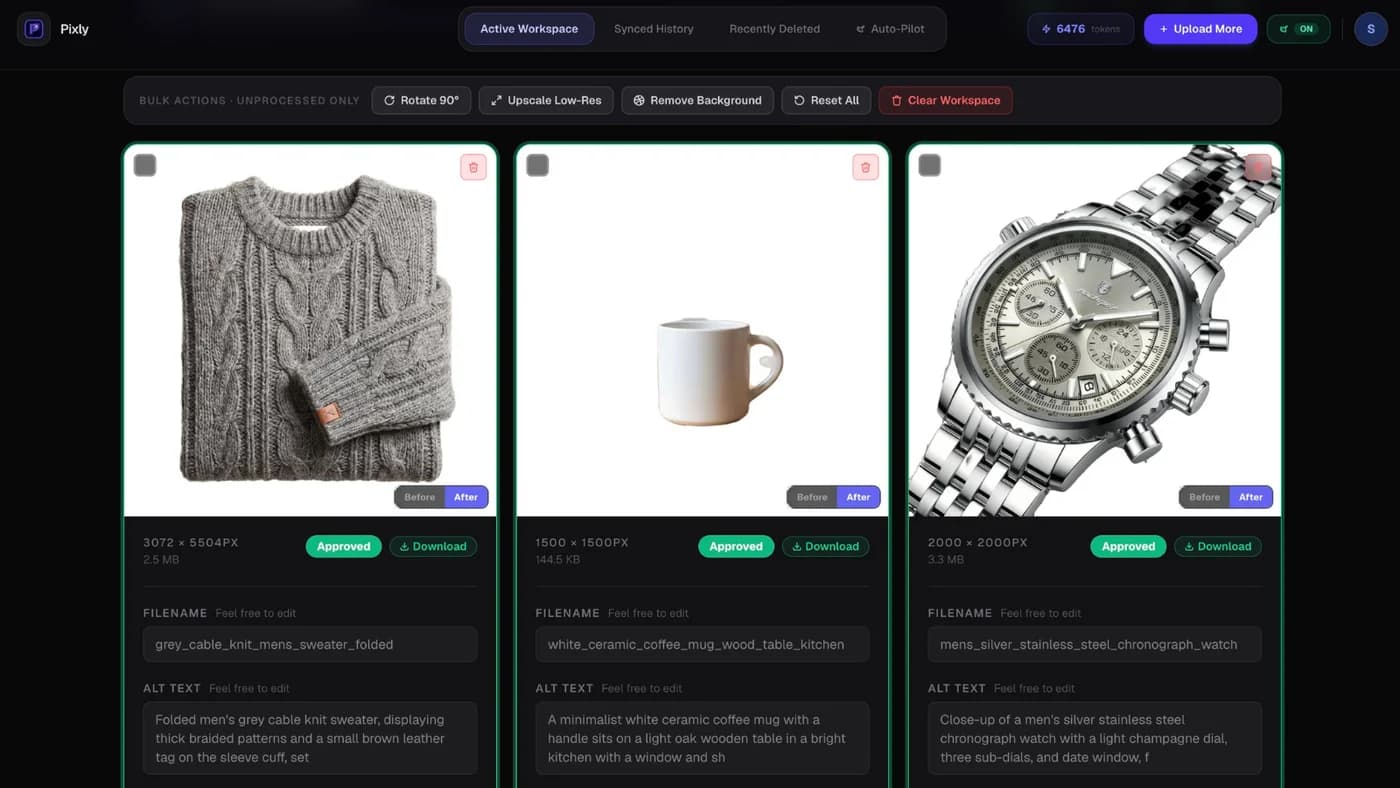
Pixly processes every approved image as a center-cropped 1:1 square so what you review in the app matches what lands in your store.
In Pixly Review, the square preview is the exact center crop that syncs to your product page:
How to resize Shopify product images manually
For a small catalog (under ~20 products), manual works.
Step 1: Export at the right dimensions
- Open the image in your editor.
- Crop to 1:1 (center the product).
- Resize to 2000 × 2000 px (or 2048 × 2048 if you prefer max Shopify size).
- Export as WebP or JPEG.
Step 2: Replace in Shopify admin
- Go to Products → select a product.
- Click the image → Replace or delete and re-upload.
- Add alt text (describe the product honestly for SEO and accessibility).
- Repeat for every variant image.
Step 3: Check the live page
Open the product on your storefront. Confirm the crop looks right on mobile and desktop.
Time cost: Roughly 2–5 minutes per image if you care about alt text and filenames. At 500 SKUs with 4 images each, that is not a weekend. It is a month.
Bulk image sizing when manual stops scaling
Once you pass a few hundred SKUs, you need:
- Consistent dimensions across the catalog
- SEO filenames (e.g.
blue-organic-cotton-tshirt-front.webp) - Alt text on every image
- WebP (or compressed JPEG) without hand-exporting each file
That is where apps and automation earn their place.
What Pixly does (product catalog focus)
Pixly connects to your Shopify store and works on product media, not theme code:
- AI alt text and SEO filenames from what is actually in the photo
- WebP conversion (on by default; you review before sync)
- 1:1 square crop with EXIF rotation so phone photos are not sideways
- Bulk approve then sync back to Shopify
- Store Audit (Growth/Scale) to find gaps across the full catalog
- Auto-Pilot (Growth/Scale) to queue new products as you add them
Step 1: Upload or import. Drag files in, or pull product images from your connected Shopify store:
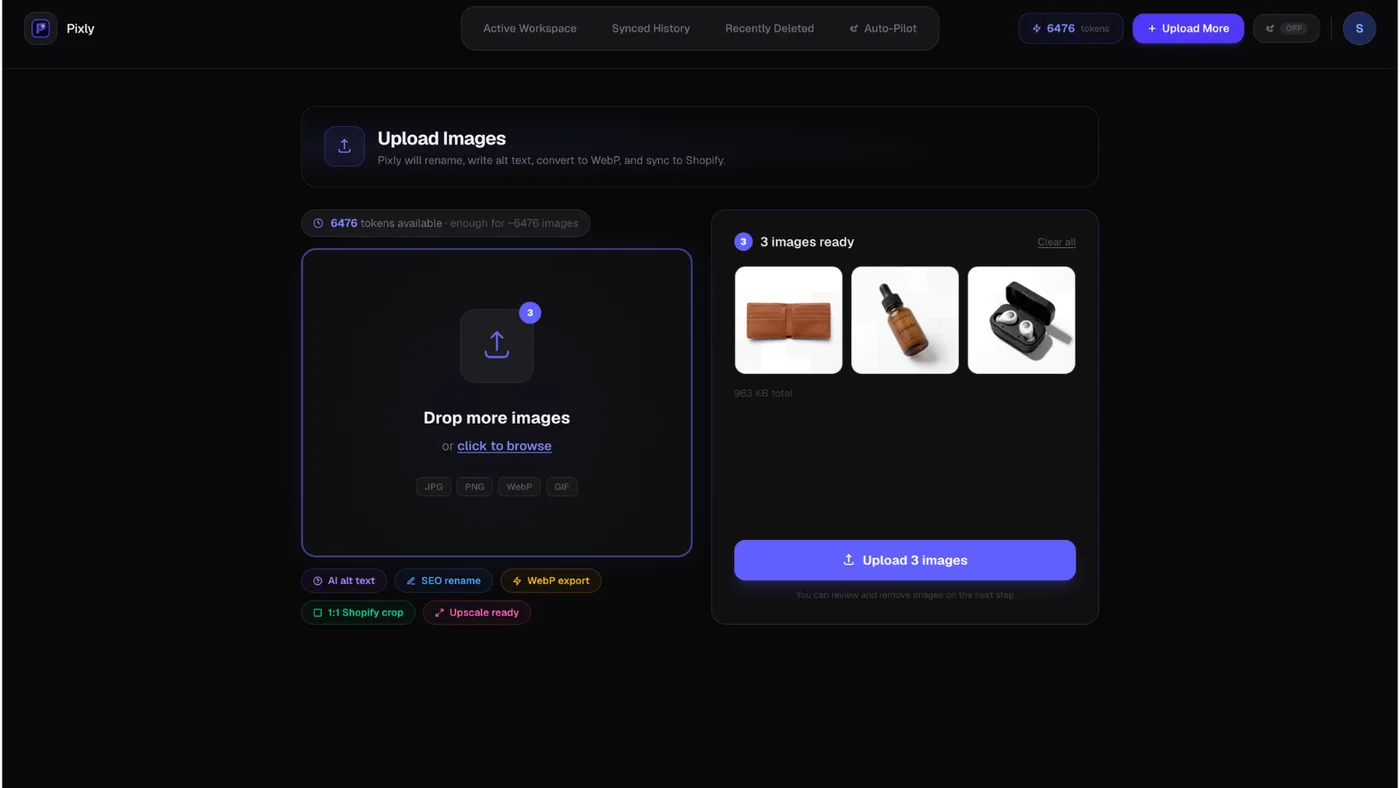
Step 2: Review size and format. Check the 1:1 crop, WebP toggle, and output dimensions before approving. The Review screen preview matches what lands in your store (see the square crop example above).
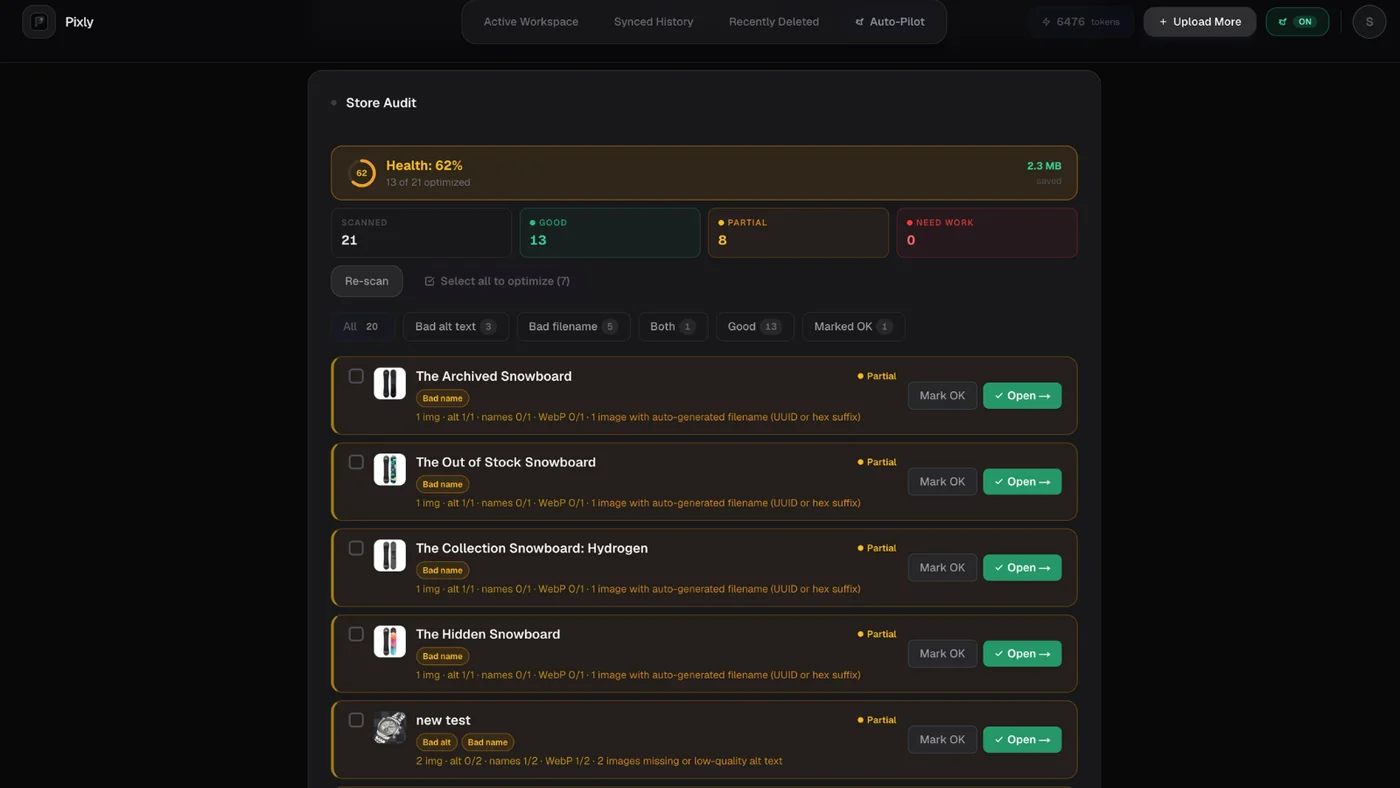
Step 3: Find catalog gaps with Store Audit (Growth/Scale). After a scan, Store Audit lists products that still have missing alt text, non-WebP images, or sizing issues:
You stay in control: nothing goes live until you approve it in Review (unless you enable full Auto-Pilot on Scale). Install Pixly on the Shopify App Store. The free plan includes 69 tokens per month so you can test on real products.
Shopify recommended product image size for mobile
Shoppers on mobile download the same product images unless your theme serves different assets. Do not upload tiny mobile-only files as your only source. Upload a sharp 2000 px square master and let Shopify's CDN resize for smaller screens.
Test on real devices after bulk changes. A catalog that looks fine in admin can still feel slow on 4G if files are 2 MB each.
Checklist before you bulk-update images
- Pick one target size (2000 × 2000 or 2048 × 2048 square)
- Pick one format (WebP preferred)
- Plan alt text rules (product name, color, angle, use case)
- Backup or note current URLs if you rely on external links
- Run a 10-product pilot before the full catalog
- Re-scan with Store Audit (Growth/Scale) or spot-check Core Web Vitals after sync
Got questions?
Frequently asked
What to read next
When you are ready to go deeper, read how to change images on a Shopify website, how to optimize Shopify store speed, and Shopify image size and resolution. Browse the Pixly blog for more guides, or read the FAQ for product questions.
Bottom line
Shopify image size guidelines in 2026 are not complicated: square product photos, about 2000 px, WebP when you can, alt text on every image. The hard part is doing it across a whole catalog.
Manual edits work for a handful of products. For a growing store, use a review-first bulk workflow so every image meets the same standard before it syncs.
Install Pixly on Shopify and run your first batch on the free plan. See the crop, alt text, and WebP savings before you commit to a paid plan.
Written by Matteo, founder of Pixly. Questions? hello@getpixly.app
Pixly for Shopify
Bulk alt text, WebP, and 1:1 crops synced to Shopify
Review every image before sync. Start free with 69 tokens per month. No credit card needed.
More from Pixly
- How Pixly works — upload, AI analysis, review, Shopify sync
- Features — Store Audit, Auto-Pilot, WebP, alt text
- Pricing — start free with 69 tokens per month
- Shopify Image Size and Resolution (2026 Guide)
- Shopify Image Recommended Size (2026 Cheat Sheet)
- Shopify Product Image Pixels (2026 Guide)
- Shopify Collection Image Size (2026 Guide)
- How to Change Images on Shopify Website (2026 Guide)